
Pruning
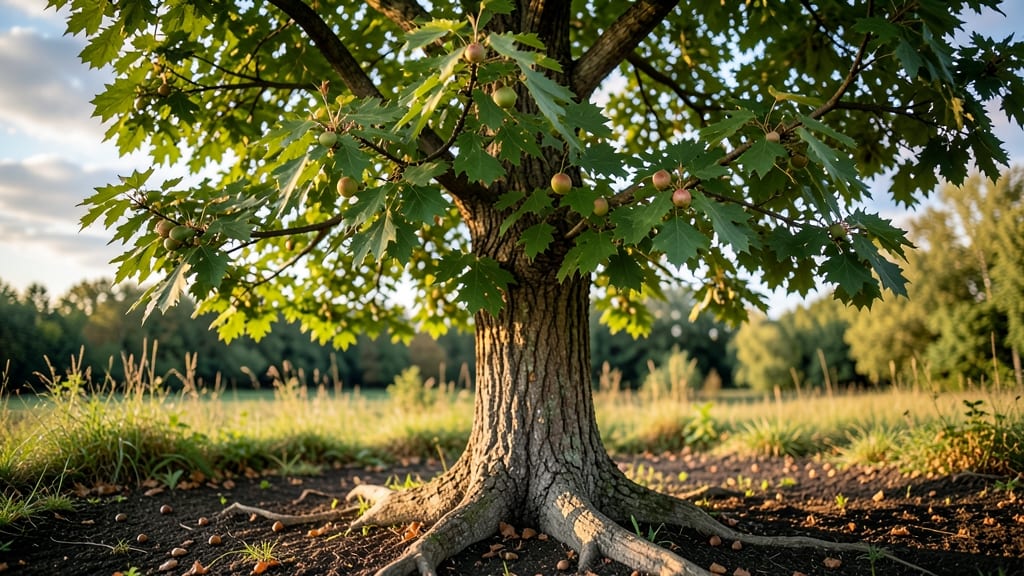
Staring at a mysterious tree in your yard and wondering, "What tree is this?" happens to every gardener. 🌳 I've used Google Lens to identify everything from towering oaks to invasive Bradford pears—here's how to do it right the first time.
Start with clear photos of leaves, bark, and any fruit or flowers. Google Lens or plant ID apps like PictureThis recognize patterns humans miss. Just avoid blurry shots or partial views—those lead to wrong answers and wasted time.
You'll get instant matches with care tips, growth habits, and even potential risks like poisonous berries or aggressive roots. My neighbor's "mystery tree" turned out to be a black walnut—now we know why nothing grows nearby! For tricky cases, cross-check with local extension services.
Safety first: never assume a tree is harmless until you're sure.
Behind The Misidentification Mix-Up
Ever stared at a tree and thought, "Google, what tree is this?"—only to get a baffling result? 🌳🤔 Misidentifications happen more often than you’d think, and understanding the why can save you time, frustration, and even a few pruning mistakes.
Below, we break down the science and real-world reasons your tree ID search might be throwing curveballs.
The most common culprit? Poor-quality images. Google’s Leaf Recognition Tool (and similar AI tools) relies on clear, high-resolution photos to match features like leaf shape, vein patterns, and bark texture. Here’s why blurry or cropped images mess things up:
- Missing Key Features: A close-up of just the leaves might miss critical details like:
- Bark texture (smooth vs. rough, fissured vs. scaly).
- Branch arrangement (alternate vs. opposite leaves).
- Flower/fruit presence (if the tree is in bloom or bearing fruit).
- Lighting Issues: Shadows or backlighting can distort colors, making the tool struggle to detect pigments or patterns.
- Angle Problems: A top-down shot might hide the leaf underside (which can be hairy, waxy, or differently colored in some species).
Pro Tip: 💡 Snap at least 3 angles—close-up of leaves, mid-shot of branches, and a full-tree view. Use natural light (avoid harsh midday sun) and focus on distinctive features like buds, thorns, or unique leaf edges.
Trees aren’t static—they change with the seasons, and AI tools often train on summer foliage.
If you’re asking "What tree is this?" in: - Fall/Winter: Leaves may be gone, and bark becomes the only clue (but some trees look very similar when leafless). - Spring: New leaves might not yet resemble the mature version, and flowers/fruits can be misleading. - Drought/Stress: Wilting or yellowing leaves can alter shape and color, throwing off the algorithm.
Example: A maple in summer is easy to spot, but in winter, its bare branches might resemble an oak or birch—both of which have very different pruning needs.
Actionable Fix: 🌡️ Check the local growing season and adjust your expectations. If the tree is bare, focus on bud shapes or bark patterns (e.g., sycamore’s patchy bark vs. birch’s papery texture).
Google’s tool is trained on global datasets, but some trees are hyper-local.
Here’s how geography plays a role: - Non-Native Species: If you’re in the Pacific Northwest and search for a palm tree, the tool might pull up Florida-based species—even though your tree is a native vine maple. - Hybrids or Cultivars: Garden centers love mixing species (e.g., Bradford pear, a hybrid with unique traits).
AI tools may not recognize these blends. - Climate Adaptations: Trees in arid climates (like Joshua trees) develop thick, waxy leaves, while tropical trees have broad, thin leaves. A tool trained on one region might misclassify the other.
Solution: 🎯 Narrow your search by:
- Adding your zip code or region to the query.
- Describing local climate (e.g., "dry desert tree" vs. "rainforest canopy tree").
- Cross-referencing with regional field guides (e.g., A Field Guide to Trees of the Pacific Northwest).
No algorithm is foolproof. Here’s what trips up AI tree identifiers: - Overlapping Traits: Many trees share similar leaf shapes (e.g., ash vs. olive trees both have lance-shaped leaves).
Without flowers or fruit, they’re nearly identical to a machine. - Data Gaps: Rare or newly discovered species might not be in the training database. - User Error in Tagging: If the original dataset had mislabeled photos, the AI inherits those mistakes.
Workaround: 🔥 If the tool gives you multiple close matches, compare them side-by-side using:
- Leaf vein patterns (parallel vs. netted).
- Leaf arrangement (whorled, alternate, or opposite).
- Tree size and shape (weeping vs. upright).
Not every woody plant is a tree. Some are:
- Shrubs (e.g., hazel or elderberry).
- Large bushes (e.g., rhodesodendron).
- Vines or climbers (e.g., wisteria or ivy).
If you’re asking "What tree is this?" about a plant under 15 feet tall, the tool might:
- Misclassify it as a dwarf tree (e.g., Japanese maple).
- Ignore it entirely if it’s not in the database.
Quick Test: 🌿 Check if the plant has:
- A single main trunk (tree).
- Multiple stems from the base (shrub).
- Needs a trellis to grow (vine).
Sometimes, the problem isn’t the tool—it’s you.
Common mistakes: - Assuming it’s a "common" tree: You might think it’s a red oak because that’s what grows nearby, but it could be a pin oak (similar but with different pruning needs). - Ignoring the "Maybe" Options: If the tool gives you three possibilities, don’t just pick the first one.
Compare all three! - Not Using Additional Filters: Tools like iNaturalist or PictureThis let you filter by leaf type, habitat, or flower color—use them!
Pro Tip: ✨ If the tool is unsure, describe the tree’s habitat:
- "Moist forest floor" → Likely a dogwood or serviceberry.
- "Dry, sunny slope" → Could be a manzanita or ceanothus.
Quickly Identify Unknown Trees
Got a mysterious tree in your yard, park, or neighborhood and wondering, "What tree is this?" Google’s Leaf Recognition Tool (via Google Lens or the Google app) is your best friend—but only if you know how to use it right.
Below, we’ll break down step-by-step solutions for accurate tree ID, plus prevention tips to avoid future guesswork.
Before diving into Google, collect key details to narrow down the search. A single leaf or branch isn’t always enough—here’s what to look for:
- 🍃 Leaf Shape & Arrangement
- Is it simple (one blade) or compound (multiple leaflets)?
- Check the edges (smooth, serrated, lobed) and venation (midrib pattern).
- Are leaves alternate (spaced out) or opposite (paired at nodes)?
- 🌿 Bark & Branch Structure
- Smooth, rough, flaky, or deeply grooved?
- Look for buds (pointy, rounded, clustered) or thorns.
- 🌸 Flowers & Fruit (If Present)
- Note color, size, and season (e.g., maples have samaras, oaks have acorns).
- 📏 Tree Size & Habitat
- Is it a small shrub or a towering giant?
- Does it thrive in sun, shade, or wet soil?
> 💡 Pro Tip: Snap multiple photos—close-ups of leaves, bark, and the whole tree. Google Lens works best with clear, well-lit images.
Once you’ve gathered clues, it’s time to digitize your findings:
🔥 Method 1: Google Lens (Mobile App)
- Open the Google app (or Google Photos) and tap the Lens icon (🔍).
- Hold your phone over the leaf/bark—Google will scan and suggest matches.
- Tap the tree icon (🌳) in the results to refine the search.
- Compare details with Wikipedia or local plant databases for confirmation.
🍳 Method 2: Google Reverse Image Search (Desktop)
- Go to [images.google.com](https://images.google.com).
- Click the camera icon (📷) and upload your photo.
- Google will return similar images—check the "Visually Similar Images" tab for tree IDs.
👨🍳 Method 3: Specialized Apps (For Pruners & Gardeners)
If Google’s guesses are vague, try these free tools:
- PictureThis (AI-powered plant ID)
- LeafSnap (focuses on leaves/bark)
- iNaturalist (crowdsourced nature ID)
> ✨ Bonus Tip: If Google misses it, try describing the tree in the search bar (e.g., "large tree with lobed leaves and white bark").
Google’s tool is 90% accurate, but not perfect. Here’s how to double-check:
| Issue | Solution |
|---|---|
| Vague Results | Search the Latin name (e.g., "Quercus robur") for oak species details. |
| Seasonal Mismatch | Some trees (like dogwoods) change drastically—check fall vs. spring photos. |
| Local Varieties | Use regional plant databases (e.g., USDA Plants or local arboretum sites). |
| Diseased/Modified Leaves | Compare with healthy reference images—disease can alter appearance. |
> 🌡️ Pro Tip: If the tree is young or hybrid, Google may struggle. Try searching "tree with [specific trait] + [your region]" for better local matches.
Once you’ve ID’d your tree, keep a record to avoid repeating the process:
- 📸 Take & Label Photos
- Store images in a cloud album (Google Photos, iCloud) with notes (e.g., "Maple – Front Yard – Prune in Late Winter").
- 📊 Create a Tree Inventory
- Use a spreadsheet or app like iTree to track:
- Species name
- Location on property
- Pruning schedule
- Notable features (e.g., "susceptible to oak wilt")
- Use a spreadsheet or app like iTree to track:
- 🎯 Join Local Groups
- Post in Facebook gardening groups or Reddit’s r/whatsthisplant for second opinions.
- 🌱 Consult an Arborist
- For valuable or rare trees, a professional can confirm ID and pruning needs.
- 🚫 Relying on one photo → Use multiple angles (leaf, bark, fruit).
- 🚫 Ignoring seasonal changes → A tree in summer vs. winter looks totally different.
- 🚫 Assuming Google is 100% accurate → Always cross-check with other sources.
- 🚫 Skipping the "Why?" → Knowing the tree helps with pruning, pests, and care!
With these steps, you’ll never be stumped by a mystery tree again—and you’ll even impress your neighbors with your newfound botanical skills! 🌳🔍
Frequently asked questions
What's the best time of year to identify trees using Google Lens?
Spring and summer are ideal because leaves are fully developed and flowers/fruit are present. Avoid winter when many trees are bare—focus on bud shapes or bark patterns instead. For deciduous trees, late spring gives the clearest identification results.
Can Google Lens identify trees from just a leaf photo?
Sometimes, but it works best with multiple angles—leaf, bark, and branch structure. A single leaf photo might miss key features like leaf arrangement (alternate vs. opposite) or vein patterns. For tricky cases, include a full-tree shot or fruit/flower details if available.
What should I do if Google gives me multiple possible matches?
Compare the top results using a field guide or cross-check with regional databases. Look for distinctive features like bud shapes, bark texture, or tree size. For example, a maple and ash might both appear in results—compare their samaras vs. compound leaves.
Are there any trees Google Lens can't identify?
Yes! Rare species, local hybrids, or young trees may not be in the database. Also, diseased or modified trees (like heavily pruned specimens) can confuse the tool. For these cases, try specialized apps like LeafSnap or consult a local arborist.
How accurate is Google Lens for tree identification?
About 90% accurate for common species with clear photos, but results vary. For critical decisions (like pruning or removal), always cross-check with multiple sources. If the match feels off, try describing the tree's traits in your search instead of relying solely on the image.